
Windows 11 Sticky Keys Popup: Microsoft's New "Never Turn On" Checkbox vs. Settings, Control Panel and Tweak Scripts
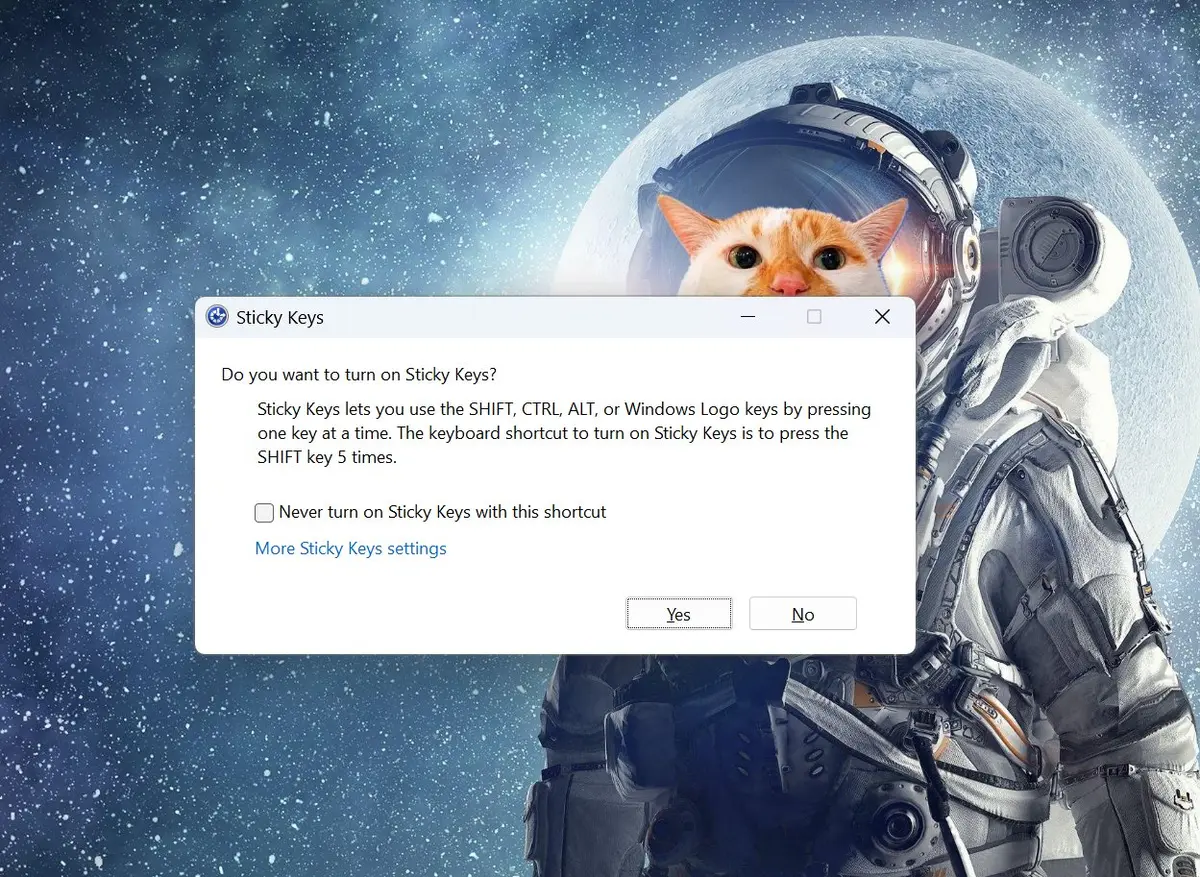
Microsoft is testing a change in Windows 11 that silences the Sticky Keys and Filter Keys prompts for good. In Insider Beta Build 26320.9876 (26H2), the dialog adds a checkbox reading "Never turn on Sticky Keys with this shortcut", so one tick replaces the old trip through Settings. It ends the interruption caused by pressing Shift five times — but the same tick also closes a discovery route for people who genuinely need the feature.
What actually changed in Windows 11 26H2
Conclusion first: the accessibility features themselves are untouched. Microsoft is only shortening the exit. Its release notes for the Beta channel build state that the dialogs asking whether you want to turn on Sticky Keys or Filter Keys are being updated to make those prompts easier to dismiss permanently. Neowin, which reported the change on November 8, framed it as Microsoft finally dealing with more than three decades of user frustration.
The problem was an asymmetry in the old design. An accidental key combination always produced a question window, but refusing it "once and for all" required opening a settings page — during a report deadline or in the middle of a match, when nobody wants to navigate menus. Microsoft says users can now choose "don't ask again" directly inside the prompt box.
Why a Windows 95-era feature still interrupts your keyboard
Sticky Keys and Filter Keys both date back to the Windows 95 era. Sticky Keys lets you press modifier keys such as Ctrl, Alt or Shift in sequence instead of holding several at once, so a copy command becomes Ctrl, release, then C. Filter Keys ignores keystrokes that are too brief or repeated, which helps people with motor control difficulties avoid accidental double input.
Each feature is genuinely useful in its intended scenario and nearly invisible in the other 95% of use cases. The friction comes from the trigger, not the function: pressing Shift five times summons the Sticky Keys prompt, and Shift is one of the most repeatedly struck keys on any gaming keyboard. Game developers have reported the dialog appearing while a title runs in fullscreen and leaving the game unresponsive until someone dismisses it.
Four ways to kill the prompt, compared
| Option | How it works | Availability today | Trade-offs |
|---|---|---|---|
| New in-dialog checkbox ("Never turn on Sticky Keys with this shortcut") | Opt out at the moment of interruption; no menu navigation | Windows Insider Beta channel, Build 26320.9876 (26H2) | Microsoft has not confirmed whether or when it reaches everyone; Sticky Keys and Filter Keys each require their own dismissal |
| Settings > Accessibility > Keyboard > turn off the Sticky Keys keyboard shortcut | Official switch that removes the Shift trigger | Standard Windows 11, no Insider build needed | Manual, per feature and per user account — the step the new checkbox is designed to skip |
| Legacy Control Panel, Ease of Access Center, "Make the keyboard easier to use" | Same core options plus extras such as hiding the taskbar icon | Still present in Windows 11 | Older surface that is easy to confuse with the modern Settings page |
| Third-party tweak or debloat scripts writing registry flags | Bulk change without clicking through menus | Community tools | Brittle: at least one Win11Debloat user reported a "Bad Value for StickyKey" failure, and registry edits are undocumented guesses that can be re-set by the next update |
Read plainly, the value of Microsoft's change is convenience, not capability. Everything the checkbox can do, the Settings page could already do. What the popup adds is a one-tap way to reach a permanent decision at the exact moment the interruption happens.
Which keyboard popup are you actually seeing?
Sticky Keys is the famous one, but it is not the only shortcut-triggered accessibility prompt in Windows. Microsoft's own accessibility shortcut list shows several triggers that overlap with everyday gaming and typing habits.
| Feature | Default trigger | What it does |
|---|---|---|
| Sticky Keys | Press Shift five times | Registers Ctrl, Alt and Shift presses one after another instead of simultaneously |
| Filter Keys | Hold the right Shift key for eight seconds | Ignores very short or repeated keystrokes |
| Toggle Keys | Press Num Lock for five seconds | Plays a beep when Caps Lock, Num Lock or Scroll Lock changes state |
| Mouse Keys | Left Alt + left Shift + Num Lock | Moves the pointer with the numeric keypad |
If you keep seeing a prompt after muting Sticky Keys, check whether the real culprit is Filter Keys or Toggle Keys: the triggers are different keys and different rhythms, and dismissing one dialog does not silence the others.
The trade-off most headlines skip
For a person who can only comfortably operate a keyboard one-handed, the Shift shortcut is not an annoyance — it is the fastest doorway into Sticky Keys, and guides for one-handed computing assume that doorway exists. Tick "never" on a shared family PC, a school lab machine or a work laptop used by someone with a tremor or a repetitive-strain injury, and you have removed the least effortful way to reach the help they may need.
The mitigation is straightforward: the features themselves stay installed. Windows still exposes Win + U for quick access to accessibility settings, and the full Keyboard panel remains reachable from Settings. Analyst view rather than manufacturer statement: the practical split is therefore simple devices for a single user (opt out freely) versus shared or managed devices (leave the prompt, or disable only the trigger and keep the feature visible).
Decision guide: act now or wait for the rollout
- Tick the new checkbox if you are already in the Windows Insider Beta channel on Windows 11 26H2 Build 26320.9876, you own the machine, and no other user depends on sequential modifier keys.
- Use the Settings route if you are on a stable release and cannot wait: Settings > Accessibility > Keyboard, then disable the keyboard shortcut for the feature that keeps firing. This works today and does not require a preview build.
- Change nothing if the popup never interrupts you, or if the device is used by someone who benefits from Sticky Keys, Filter Keys or Mouse Keys.
- Avoid registry scripts for a single popup. A one-time settings toggle does the same job with no risk of a broken flag value; if a tweak does leave your system in a bad state, you may end up comparing Windows 11 recovery paths you never intended to explore.
- Re-check after major feature updates. Preview behaviour in 26H2 is not a promise about the final build, and the same reasoning applies further down the roadmap to Windows 11 27H2, where Microsoft is expected to keep tuning everyday quality-of-life details.
Common misconceptions
- "This removes Sticky Keys from Windows." It removes the shortcut trigger and the question dialog. The feature itself stays in the Keyboard accessibility settings.
- "The fix is already on my PC." It is confined to a Windows Insider test build; Microsoft has said whether and when the change reaches all users is not yet decided.
- "One dismissal covers everything." Sticky Keys and Filter Keys have separate dialogs and separate triggers; the old habit of pressing Shift five times only explains one of them.
- "Microsoft killed a 30-year-old accessibility feature." The functions introduced in the Windows 95 era remain; only the interruption design changed.
Frequently asked questions
How do I stop the Sticky Keys popup without joining the Insider program?
Open Settings, go to Accessibility, then Keyboard, and turn off the option that allows the shortcut to activate Sticky Keys. That achieves the same end state as the new checkbox, just through a menu instead of the dialog itself.
Which build introduced the new checkbox?
Windows 11 26H2 Beta channel preview Build 26320.9876, as listed in Microsoft's Insider release notes and reported by Neowin on November 8.
Will turning the prompt off hurt my keyboard shortcuts?
No. Normal combinations such as Ctrl + C still require holding both keys; the change only affects the accessibility helper and the dialog that offers to enable it.
Can I undo the "never" choice later?
Yes. Re-enable the keyboard shortcut for Sticky Keys in Settings > Accessibility > Keyboard, and the prompt will appear again the next time the trigger fires.
Why does this matter beyond an annoying popup?
Because it is a small example of a bigger design question for Windows: how an operating system balances interruptive accessibility prompts against the risk that users silence them permanently. The answer now depends on which build you are running.
Reference sources
- Microsoft Windows Insider release notes, Windows 11 Beta Preview Build 26320.9876 — https://learn.microsoft.com/en-us/windows-insider/release-notes/beta/preview-build-26320-9876
- Neowin, "Microsoft finally addresses over 30 years of user frustrations with a simple Windows 11 fix" — https://www.neowin.net/news/microsoft-finally-addresses-over-30-years-of-user-frustrations-with-a-simple-windows-11-fix/
- Microsoft Support, Windows keyboard shortcuts for accessibility — https://support.microsoft.com/en-us/accessibility/windows/windows-keyboard-shortcuts-for-accessibility
- Unity Discussions, fullscreen behaviour when the Sticky Keys prompt appears — https://discussions.unity.com/t/windows-sticky-keys-prompt/743349
- GitHub, Win11Debloat issue #622 "Bad Value for StickyKey" — https://github.com/Raphire/Win11Debloat/issues/622
- AbilityNet, how to use Sticky Keys to operate the keyboard one-handed in Windows 11 — https://mcmw.abilitynet.org.uk/how-to-use-sticky-keys-to-operate-the-keyboard-one-handed-in-windows-11