
Windows 11 Search Can Now Launch Android Apps From Your Phone: What Microsoft's Streaming Preview Is Really Worth
Verdict first, mechanics second. Microsoft has slipped a phone shortcut into taskbar search: in the latest Windows 11 Insider Preview, apps installed on a paired Android handset now show up as ordinary search results, and clicking one fires the app on the phone while Phone Link mirrors its screen onto the desktop. Judge it as a remote control with a keyboard attached, not as Android arriving on Windows. The handset still executes the code, still supplies the battery, still has to sit on the same Wi-Fi network as the PC. For one specific reader — the person who keeps unlocking a phone to open apps that have no desktop version — this is a real time-saver. For anyone hoping for an emulator, it is a non-event.
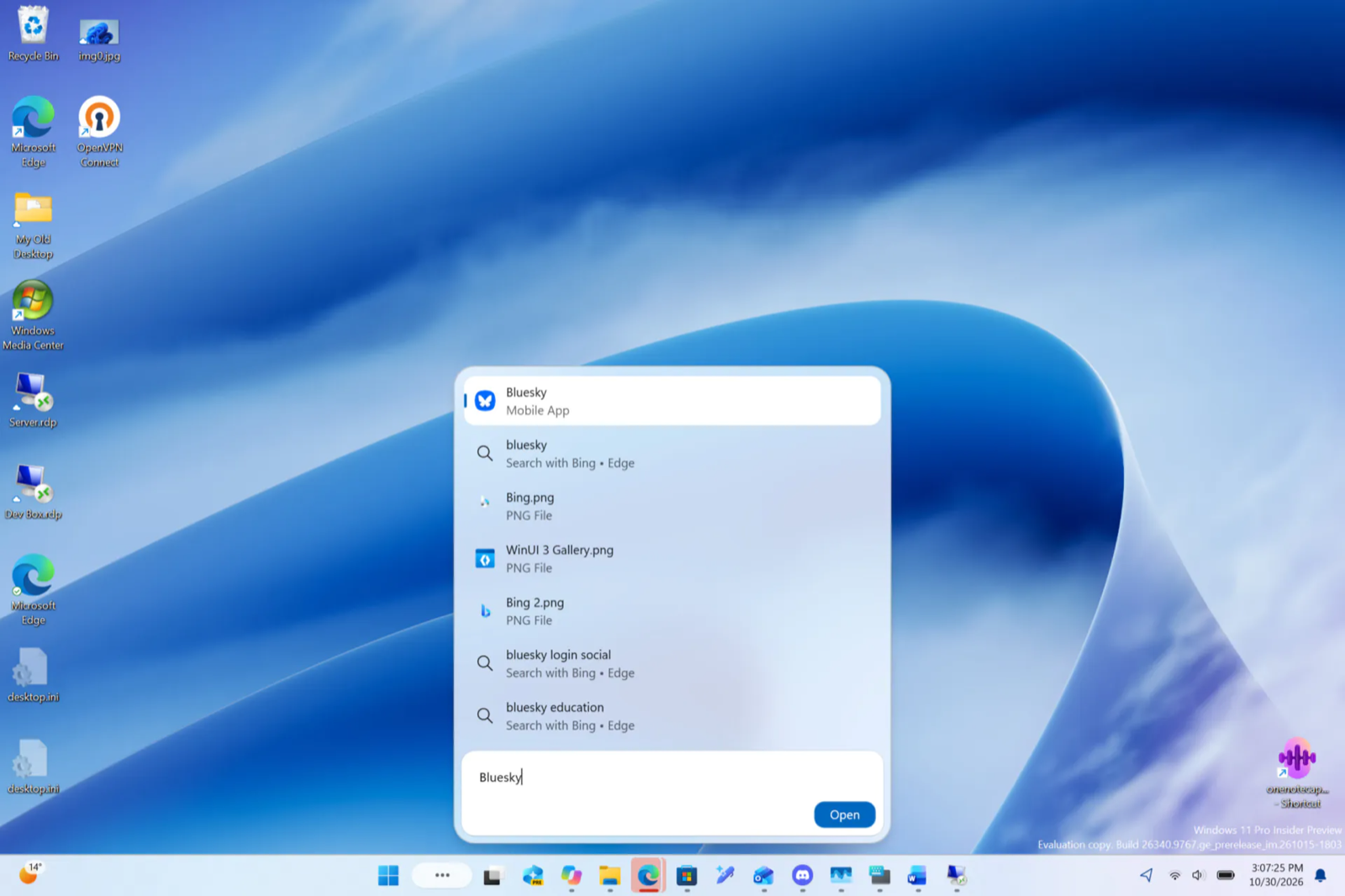
What changed inside the Windows 11 Experimental preview
The behaviour is live in the Experimental channel of the Windows 11 Experimental preview, riding on the redesigned search surface that Microsoft has been unwinding since autumn 2026. In an official Windows Insider blog entry published on 7 October 2026 under the headline "From searching to doing", the company framed the redesign as a move from looking things up to actually acting on them — until now that meant settings toggles, files and contacts already living on the PC.
Phone apps are the logical next object in that chain, but the mobile-app result has not been written into the Insider changelog. It surfaced through hands-on testing instead: in a write-up by the tech outlet Windows Latest, a Surface Laptop 7 was paired with a Samsung Galaxy A26 running Android 16, and typing a single social-app name into the box returned the handset's installed app as the top hit, tagged as a mobile entry and ranked ahead of web suggestions and local files. One click started the app on the phone; the PC answered with a Phone Link window showing the phone's screen, status bar and all.
Keep that architecture in mind, because every trade-off below — smoothness, supported handsets, failure modes — is a downstream consequence of one decision: the computer displays, the phone computes.
Four ways to run Android on a Windows PC, side by side
| Route | Where the app runs | How you open it | Setup cost | Status today | Best fit |
|---|---|---|---|---|---|
| Taskbar search + Phone Link streaming (new preview) | Phone | Type the name in the search box | Pairing plus a supported handset | Windows 11 Insider Preview, Experimental channel, not in the changelog | Keyboard-first people who hop between phone-only apps all day |
| Phone Link app page (existing feature) | Phone | Open Phone Link, browse, pin or launch a supported app | Same pairing, extra clicks | Shipping | Occasional use, a couple of favourites |
| Android subsystem on Windows (the old installer route) | PC, through a virtual layer | Installed app appears in Start like any Windows program | App installs on the PC | Abandoned by Microsoft | Legacy reference only — no longer a practical option |
| Manual mirroring tools such as scrcpy | Phone | USB debugging, then launch the tool yourself | Developer options, no ecosystem tie-in | Third-party, open source | Full-screen control, very low latency, handsets outside the official list |
Read across the table and the value proposition sharpens. The new preview does not add capability that Phone Link lacked; it collapses the path to capability that already existed. Earlier, streaming meant opening Phone Link, finding the app, launching or pinning it. Now the search box is the front door, which is exactly where keyboard-heavy users already are.
Requirements checklist: will your setup actually work
- A PC on the latest Windows 11 Insider Preview, enrolled in the Experimental channel build ring.
- Phone Link launched on the PC with a completed pairing flow for an Android device.
- A handset from the brands Microsoft lists: Samsung, HONOR, OPPO, ASUS, vivo, Xiaomi, iQOO, realme, OnePlus.
- Model-level confirmation, because eligibility ultimately rests with the OEM — support generally assumes the "Link to Windows" mechanism came preinstalled. Verify your exact device against the Windows Phone Link compatibility list before you plan a workflow around it.
- Phone and PC on the same Wi-Fi network. Microsoft's own Phone Link requirements and setup page treats a shared wireless network as a condition, not a nicety.
- Bluetooth pairing between the two devices, recommended for a stable link.
- A reality check: successful call and text pairing is not proof that app streaming works. Plenty of configurations clear the basic handshake and still never show app content.
Where the experience still costs you
- Aspect ratio. The stream carries a vertical phone canvas onto a wide monitor, so a large share of the window is dead space unless the app supports a landscape layout.
- Responsiveness is rented, not owned. Smoothness depends on your access point, interference and distance, and a busy 2.4 GHz band will feel it immediately.
- The phone is a dependency, not an option. Sleep, locked screen, mobile data instead of home Wi-Fi, or a dead battery all take the desktop shortcut with them.
- Preview risk. Experimental channel builds change under you; an undocumented result can be renamed, gated or removed without notice.
- Shared-desk privacy. A mirrored handset window shows whatever your notifications and apps display to anyone looking over your shoulder.
Who gains most, and who should hold off
Gains: staff who live inside banking, identity, workplace or regional apps that never shipped a Windows client; writers and support agents who copy between a mobile-only app and a desktop document; anyone already paying for a supported handset from the brand list above.
Hold off: iPhone-centric readers, since the pairing path described here runs to Android devices; people who want an app installed, offline-capable and independent of a handset; and anyone on a company-managed PC where Insider builds, Bluetooth pairing or an extra always-on background app would breach policy. If your goal is gaming or long sessions, the extra hop through Wi-Fi is the wrong place to start.
Common misconceptions
- "The Android subsystem is back." No. That approach ran apps inside a virtual layer on the computer and was discontinued; this one launches the app remotely and streams pixels.
- "Every Android phone will work once paired." No. The nine-brand list is only the entry ticket; the OEM decides per model, and missing preinstalled linking support is the usual reason the app option never appears.
- "The app is installed on my laptop." It is not. Uninstall it on the phone and the desktop result disappears with it.
- "This is a finished, shipping feature." It is a preview discovery, undocumented in the release notes, so treat any behaviour you read about — including ranking and window style — as provisional.
FAQ
Do I need a Samsung handset?
No. Samsung, HONOR, OPPO, ASUS, vivo, Xiaomi, iQOO, realme and OnePlus all appear on Microsoft's supported-brand list, but the deciding factor is whether your particular model carries the preinstalled link mechanism.
Is the same Wi-Fi network really mandatory?
For streaming, plan on it. Notifications and messaging can survive on looser conditions, but screen mirroring is the most network-sensitive part of the Phone Link stack, and Microsoft's setup guidance names a shared Wi-Fi network as a requirement.
Will this reach the stable channel?
Nothing in the changelog promises it. Microsoft's Insider blog lays out a broader "searching to doing" roadmap, so the direction is documented even when this specific result is not — expect the entry point to be renamed or reshaped before general release.
Is there a snappier alternative while I wait?
Open-source mirroring is the pragmatic answer: scrcpy is commonly measured around 35–70 ms over a USB link, which beats most wireless setups — the trade is manual Developer-options configuration and zero official support.
Does this drain the phone?
Expect more warmth than a notification-only pairing, since the handset renders the app, encodes the stream and holds the radio connection open simultaneously. Desk users usually solve it by keeping the phone charged during sessions.
Action plan: decide in ten minutes
- Look up your exact model in the Windows Phone Link compatibility list. If it is absent, stop here — the rest of the article will not change your outcome.
- Count your phone-only apps. Fewer than three daily opens means the existing Phone Link page is good enough and an Insider build is overkill.
- If you do test it, enrol a personal, backed-up machine rather than a work PC, and stay out of Experimental on the one laptop you cannot afford to break.
- Benchmark the shortcut yourself: time five app launches through search and five through the old Phone Link page. Keep the build only if the delta is obvious.
- Re-check the Insider release notes monthly; preview features of this kind tend to move from undocumented discovery to formal rollout, and the rollout often arrives with new conditions.
- Keep a fallback. A pinned favourite, a wired mirroring tool, or the web version of the app each remove one dependency on the phone being awake and nearby.
Bottom line: this is Microsoft making an existing bridge easier to cross rather than building a new one, and the honest way to evaluate it is by counting the seconds you save per launch, not by the headline. If your work already revolves around Android apps with no Windows twin, the preview is worth a controlled test on a spare machine. If it does not, this is a well-designed shortcut waiting for a user who is not you — and nothing is lost by staying on a stable build. ItInsightsWorld will re-run the checklist above when the feature reaches release notes; questions about this review can go to contact@itinsights.com.