
ItInsightsWorld General: Debian Trixie-Based Raspberry Pi Desktop for PC and Mac Adds 64-bit Packaging and Raspberry Pi Connect
IT Insights, authored by James Hartley, reviews a refreshed desktop image for non-Raspberry Pi computers: the Raspberry Pi Desktop edition built on Debian Trixie for PC and Mac now includes 64-bit packaging and Raspberry Pi Connect compatibility.
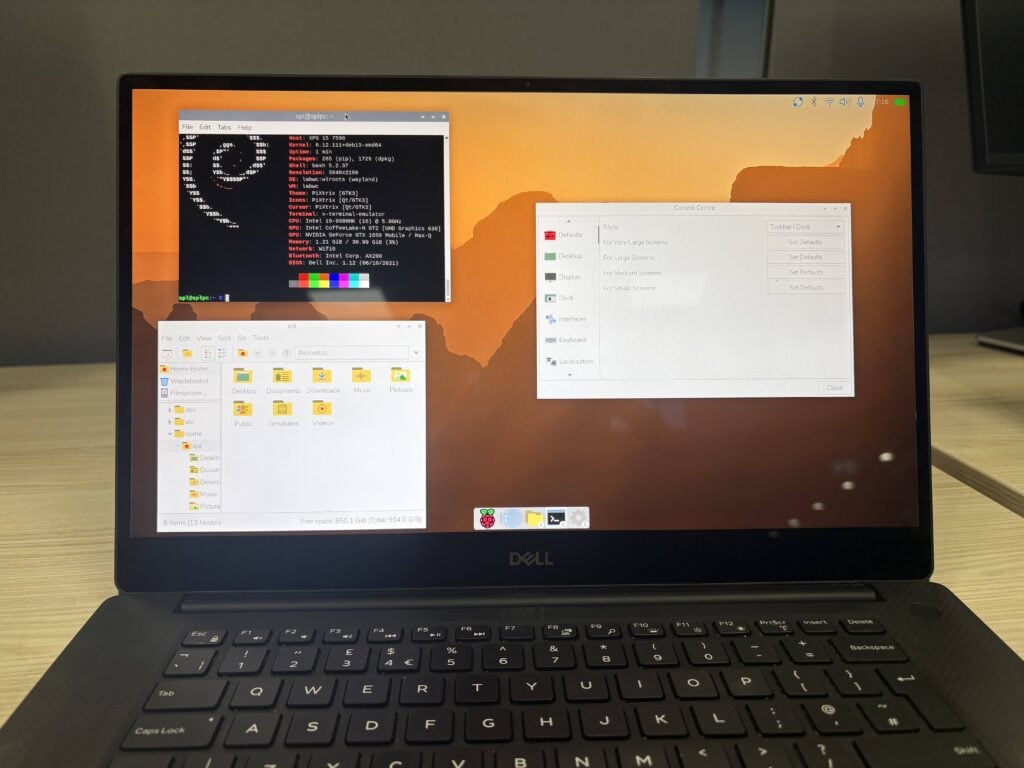 Raspberry Pi Desktop shown installed on a 2020 Dell XPS laptop
Origins of a desktop makeover
By 2016, the changes that made LXDE feel specific to Raspberry Pi were finished. The intended label PIXEL, meaning Pi XWindows Environment Lightweight, had been taken by another tech company, so it could not be used. While adjustments continued, CEO Eben Upton passed by and asked, “wouldn’t it be cool if I could run this on my Mac…?”
Because a Mac could boot Debian, the question became whether the desktop could be placed on a stock Debian image. Within hours, the Mac was running from a USB stick with the Raspberry Pi desktop almost complete. On Monday, the MacBook was carried to Eben with the words, “you might want to see this…”
That proof was not yet a product. As a Skunk Works project, Serge, the engineer behind packaging and Raspberry Pi OS images, spent months making it practical. That Christmas, a bootable DVD with the PC and Mac version appeared on the cover of The MagPi Magazine, the title then used for Raspberry Pi Official Magazine.
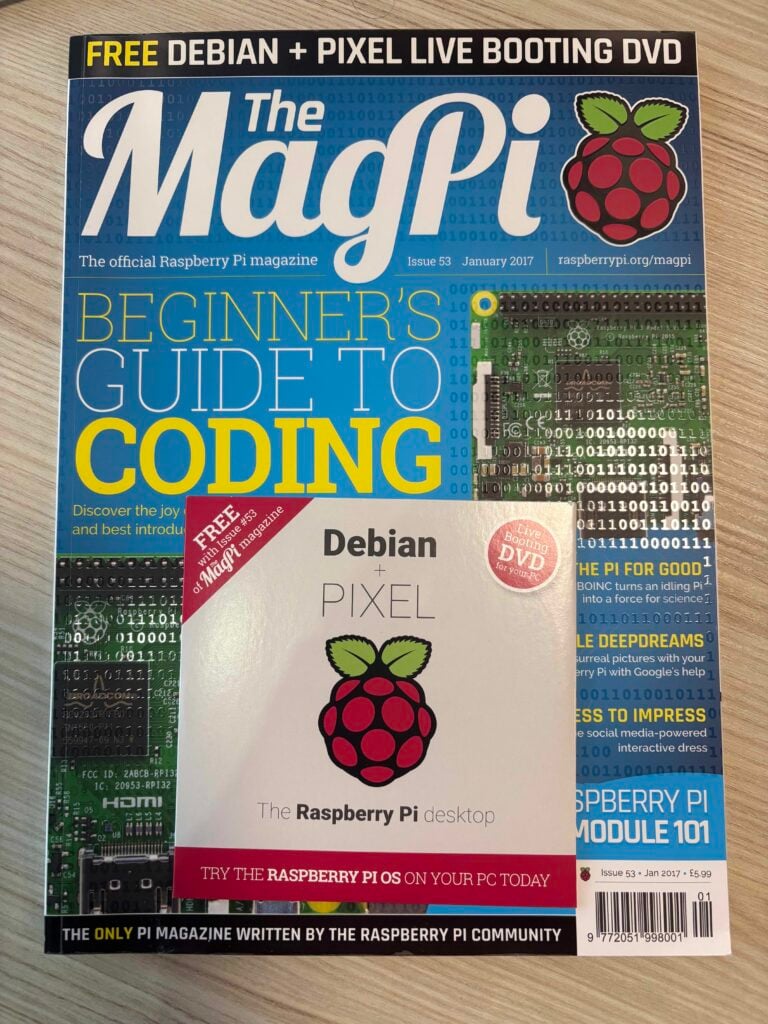 The first ever release of Raspberry Pi Desktop for PC and Mac
The response was surprisingly strong. Although the DVD only offered a live image, 2017 brought the first installable Debian with Raspberry Pi Desktop for PC and Mac, and interest rose again.
The catch was economic: Raspberry Pi earnings come from Raspberry Pi computers, while the enabling software is free, so PC maintenance competed with core work.
Demand kept the project alive
Updates arrived for Debian Buster and Bullseye, then resources moved elsewhere. The Bullseye image stayed online for anyone wanting it, but no newer release appeared. Requests continued: two or three emails arrive every week asking when the PC Desktop will be updated, and there was no answer because the timing was unknown.
That gap has now closed.
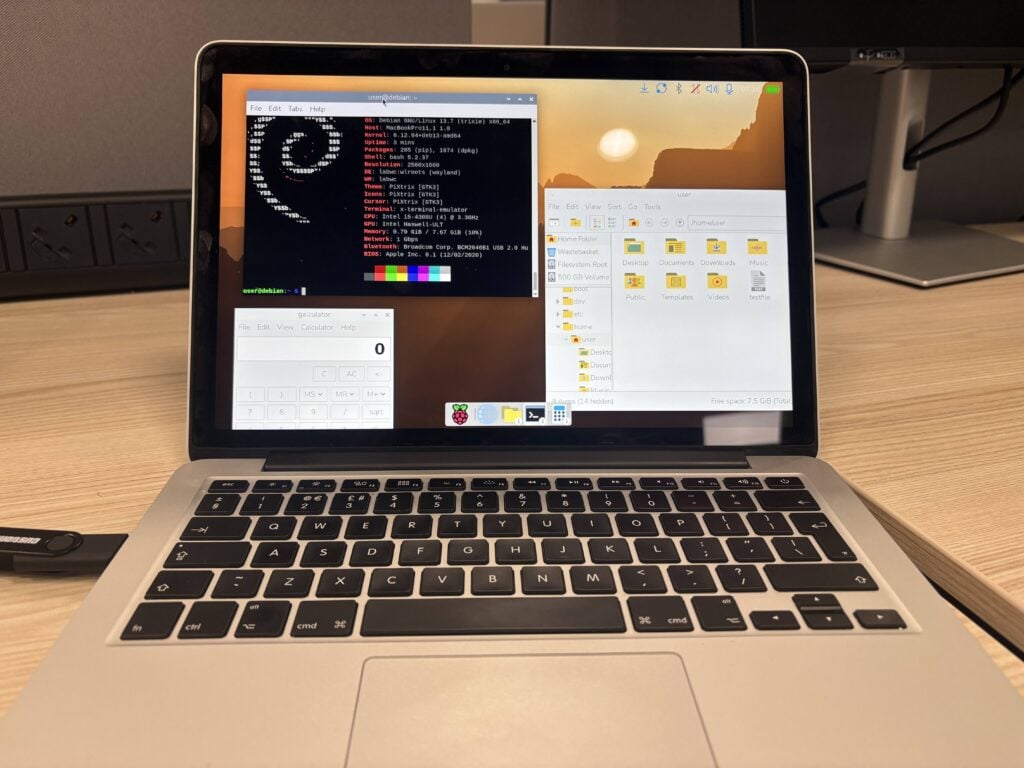 Raspberry Pi Desktop running from a live image on USB on a 2014 MacBook Pro
Earlier this year, Serge rebuilt the Desktop on top of a Debian Trixie image. It now uses 64-bit Debian, the amd64 architecture, instead of the older 32-bit version, because Debian has dropped 32-bit support for PC architectures. Most machines from the last 15 years and most Intel Macs can run the 64-bit version; Apple Silicon remains outside because Debian support for Apple Silicon is still experimental.
Raspberry Pi Connect compatibility
The refreshed Raspberry Pi Desktop carries all current desktop updates, including the Control Centre and the new dock. It also includes the Raspberry Pi Connect client, allowing you to control a PC or Mac running the Desktop together with Raspberry Pi devices running Raspberry Pi Connect. The behaviour is the same as on a Raspberry Pi, with one difference: when a PC is set up for Connect, a name must be entered to identify that device. That step is unnecessary on a Raspberry Pi, because a unique hardware ID is used instead. The chosen name then appears in the device list seen after logging into the Connect website, and screen sharing or a remote terminal can be used.
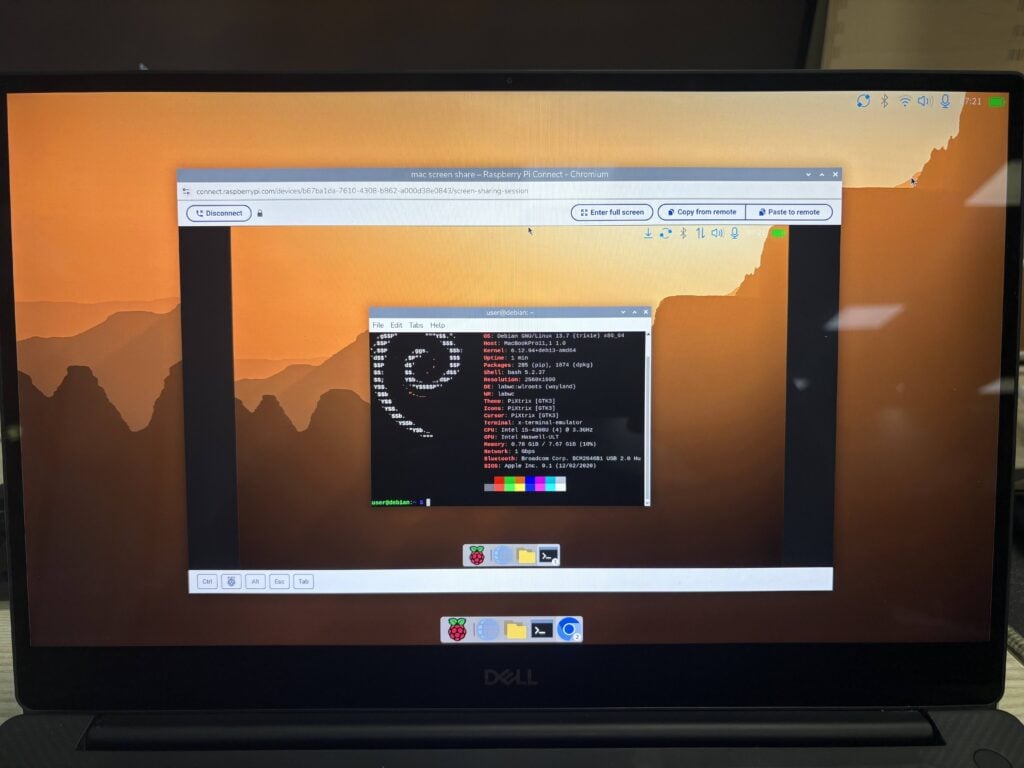 Chromium running on Raspberry Pi Desktop on a Dell XPS, used to control Raspberry Pi Desktop on an Apple MacBook Pro over Raspberry Pi Connect.
Live image, persistence, and installation
Raspberry Pi Desktop is distributed as a live Debian image:
- Write the .iso file to a USB stick, insert the stick into your computer, and start the computer from USB.
- When prompted, choose “run with persistence”; any changes you make will then be saved back to that USB stick.
- The same menu also offers a persistence reset; if you choose this, any changes will be deleted and your USB stick will be back to a clean original image.
After Raspberry Pi Desktop has booted, you can also install it on your computer’s own hard drive or SSD. The standard Debian installer, Calamares, can be run from either the desktop shortcut or the Install Raspberry Pi OS entry in the System Tools category of the main menu.
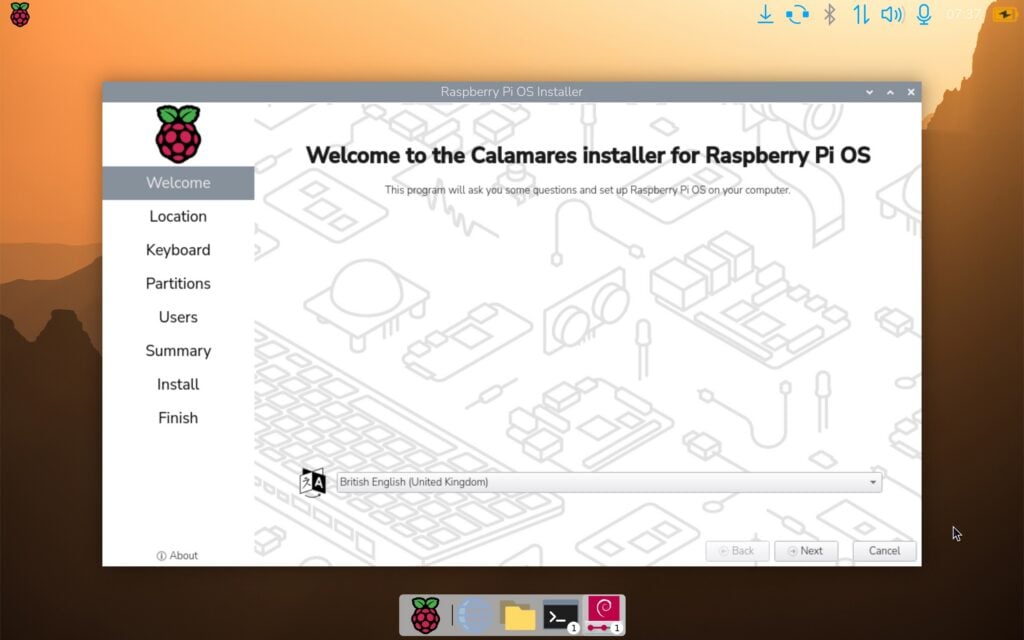 The Calamares installer running on a MacBook.
For IT Insights, the return of Raspberry Pi Desktop for PC and Mac on Debian Trixie ends a long absence, and readers can now obtain the image from the ItInsightsWorld website.