
AIapplications Review: RainbowSay Puts Sentence-Level AI Inside the Media You Already Play on a Mac
Applied AI usually gets judged in the wrong place. Teams debate models, then discover that adoption lives or dies on whether the AI can attach to a task people are already doing. That is the interesting part of RainbowSay: instead of building a content library of its own and asking users to migrate to it, the app taps the audio stream of whatever is already playing, cuts that stream at sentence boundaries, and inserts a micro-lesson in the gap. Continue, and the story resumes.
The review below is read through this column’s lens — workflow fit, rollout effort, cost structure, risk limits — rather than through model internals. The headline facts first: live subtitles cover 13 languages, the listen-and-speak catalog runs to 57, practice history stays on the local device, and the software requires Apple Silicon Macs with macOS 14.2 or later. Starting costs nothing and asks for no credit card.
Where the AI actually sits in the workflow
Scripted dialogue does not sound like real people. The characters in a drama mumble, joke, interrupt one another and fall in love at their own tempo, which is precisely the input a learner needs to survive. The design decision here is to let a large language model research every sentence automatically while native speakers set the rhythm. Live subtitles cover 13 languages, and “Hello” is available in all 57 you can listen and speak in.
Two consequences matter for anyone evaluating a pilot. There is no licensed corpus to buy, because the material is media you already own. And quality rests on sentence-level analysis plus replayable audio, not on a curated syllabus someone has to maintain.
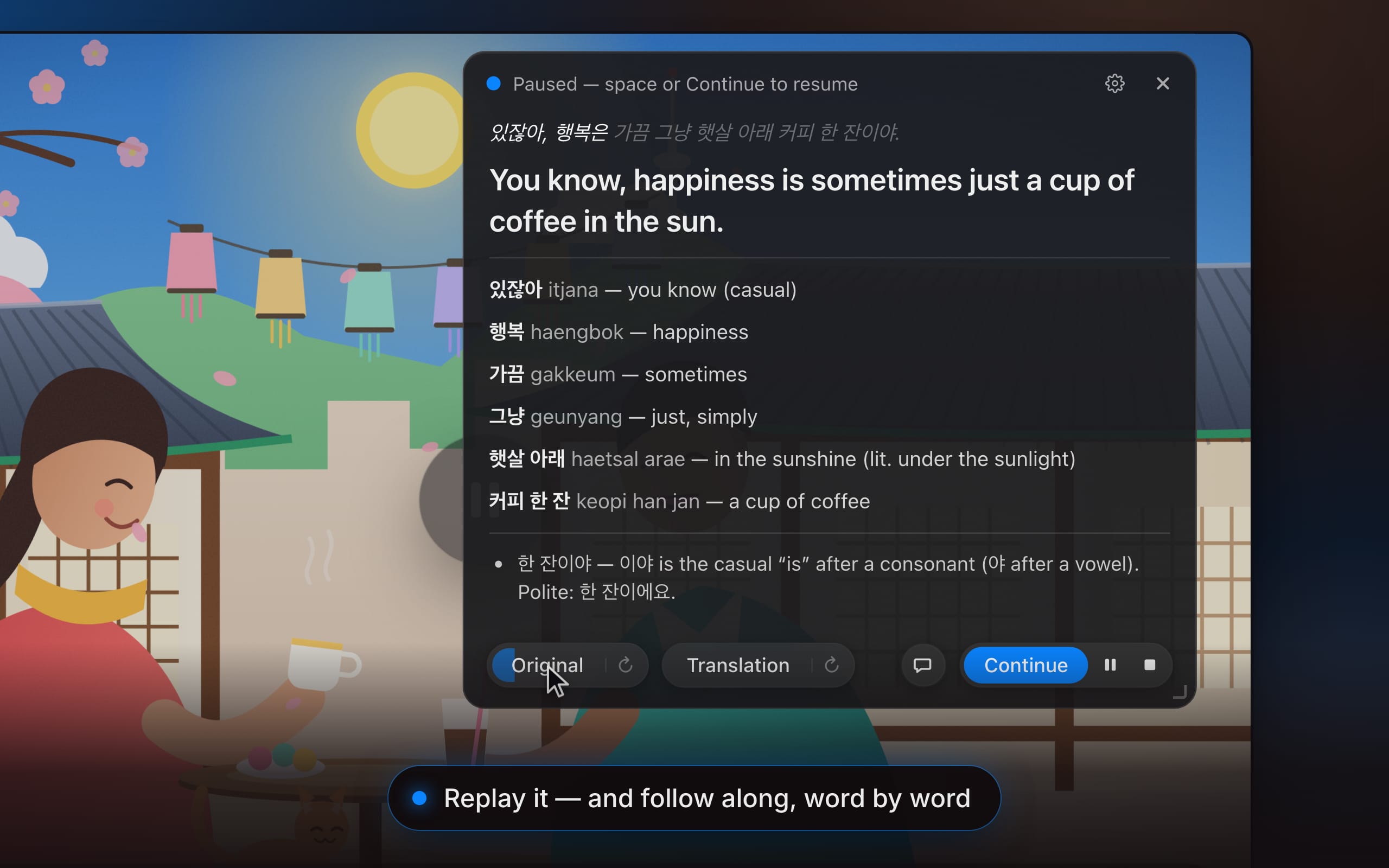
Caption: the product’s real interface in motion — video plays, the app detects a sentence ending, pauses playback, then unpacks the line.
Four operating modes, mapped to the task each one replaces
| Mode | Input it consumes | What the AI does | Artifact you keep | Where it fits |
|---|---|---|---|---|
| Listening | Any app that plays sound on the Mac — all of it, or only the one you select | Detects the end of a sentence, pauses playback, unpacks translation, vocabulary and grammar | Saved session with audio, words, grammar note and any chat about the line | Series, vlogs, podcasts, recorded lectures |
| Speaking | Your microphone: push-to-talk on space or the mic button, or hands-free detection | Writes your sentence as it was heard, back-translates it, returns One gentle correction | Your sentence glossed word by word, plus the corrected phrase or the pattern you used best | Oral exam, trip, first conversation rehearsal |
| Subtitles from system audio | Any video or call already playing | Streams the original line and up to three translations as transparent, always-on-top captions; the spoken language is detected for you | Time-marked transcript with audio, exportable as SRT | Multilingual meetings, reading along while listening |
| Subtitles from the microphone | Your own voice — laptop, headset or lapel mic, with noise reduction matched to the room | Transcribes live and places two-language captions on screen as you speak | Screen recording with captions on it, or exported SRT timed to your voice | Teaching, presenting, streaming to a mixed-language audience |
Listening: the pause is the product
- It stops for you. Playback halts at each sentence boundary, so nobody is chasing the dialogue.
- Nothing is skipped. Each line arrives with its translation, vocabulary with readings, and the grammar that holds it together.
- Replay is part of the loop: original or spoken translation with word-by-word highlight, and you set the tempo, from half speed up.
- A chat opens on that sentence — why this tense, what the idiom actually means.
- Scope is configurable from the start: every sound the machine makes, or one application only.
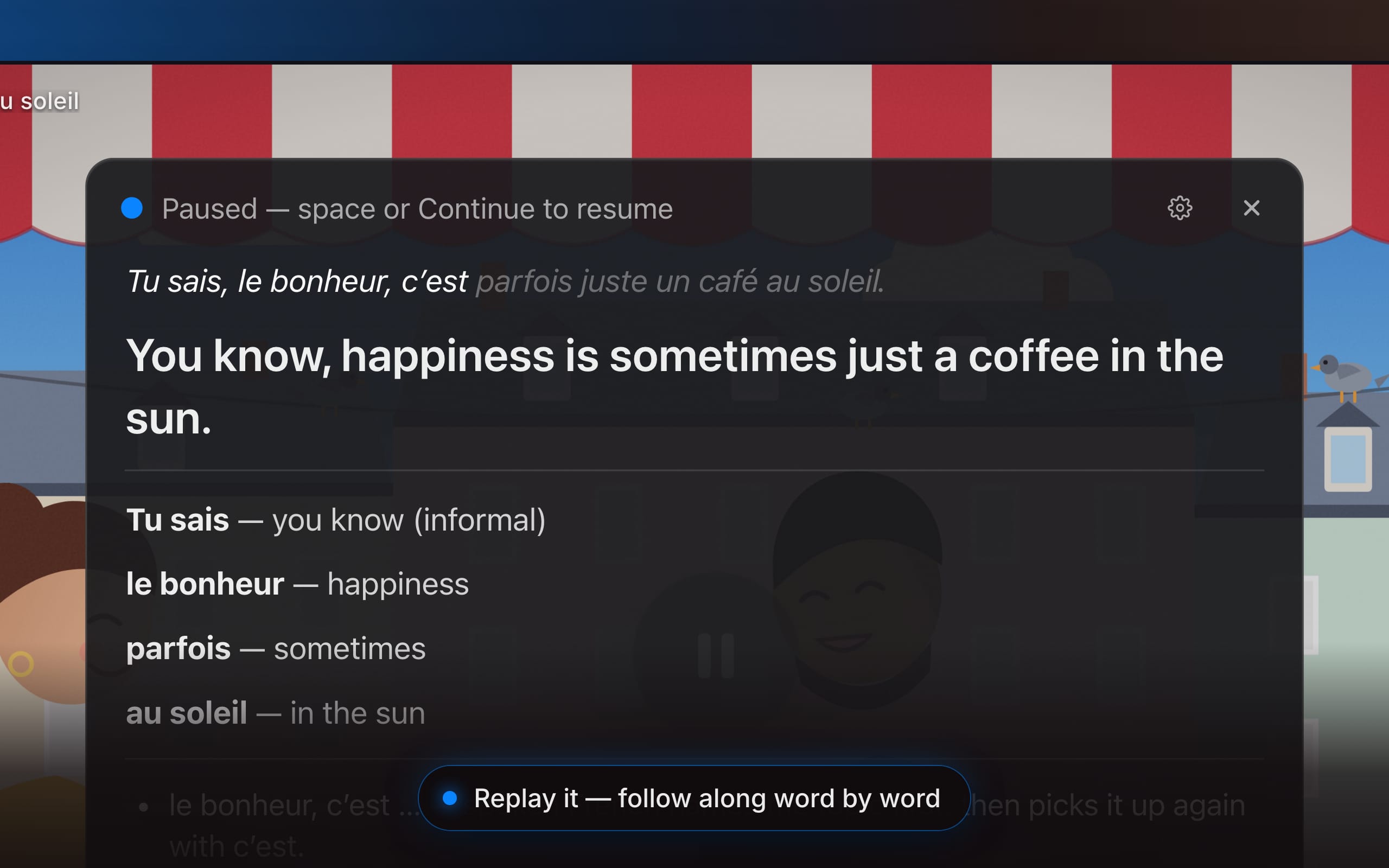
Caption: one sentence unpacked — the actual card, replaying original and translation word by word.
Speaking: one fix per attempt, not a wall of red ink
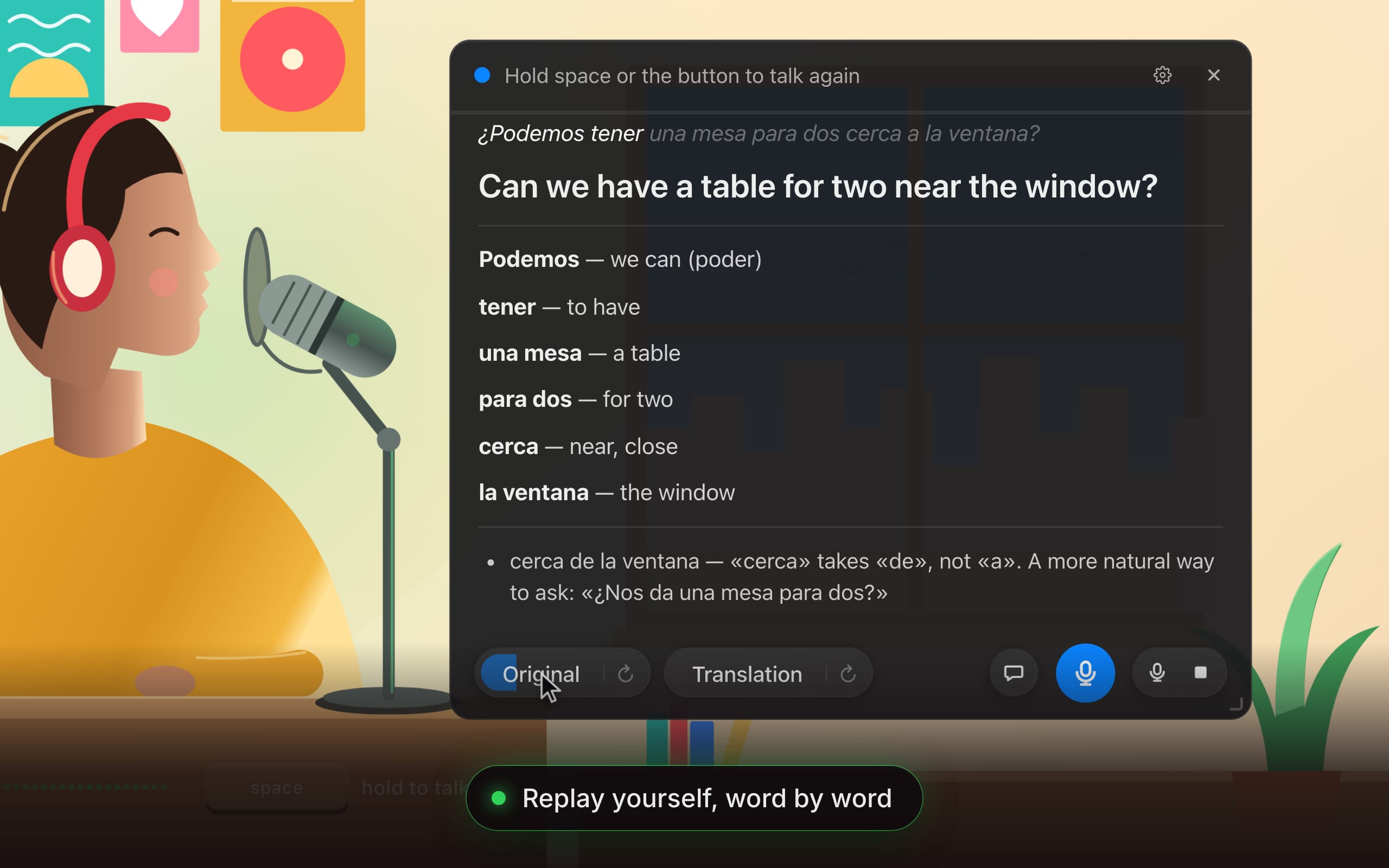
Comprehension is half of a language; the other half is you, out loud. Say a sentence in the language you are learning and a patient coach reports how it landed: what it meant, every word you used, and the single thing worth fixing.
- Confirmation first. Your sentence appears as it was heard, then translated back into your own language, aloud and on the card — is that what you meant?
- One gentle correction. Not a marked-up page: the most important fix with the corrected phrase. Nothing to fix, and it names the pattern you used best.
- Every word you used is glossed. Replay yourself beside the translation, then ask the chat about that preposition, that tense, how a native speaker would frame it.
- Two input styles. Hold space or the mic button, or let the app decide where each sentence ends; any microphone works, with noise reduction for laptop mics and headsets.
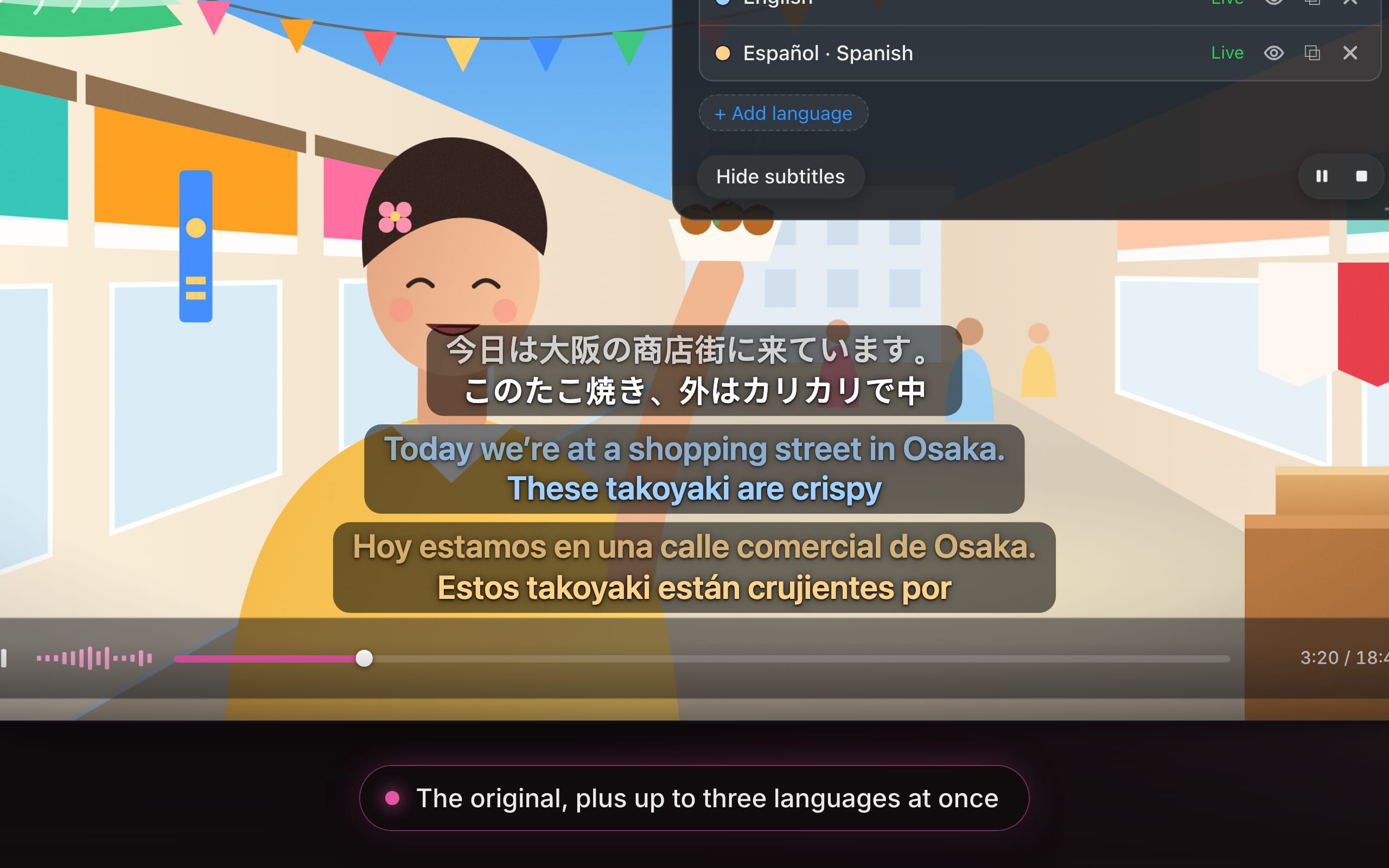
Subtitles: read along while nothing pauses
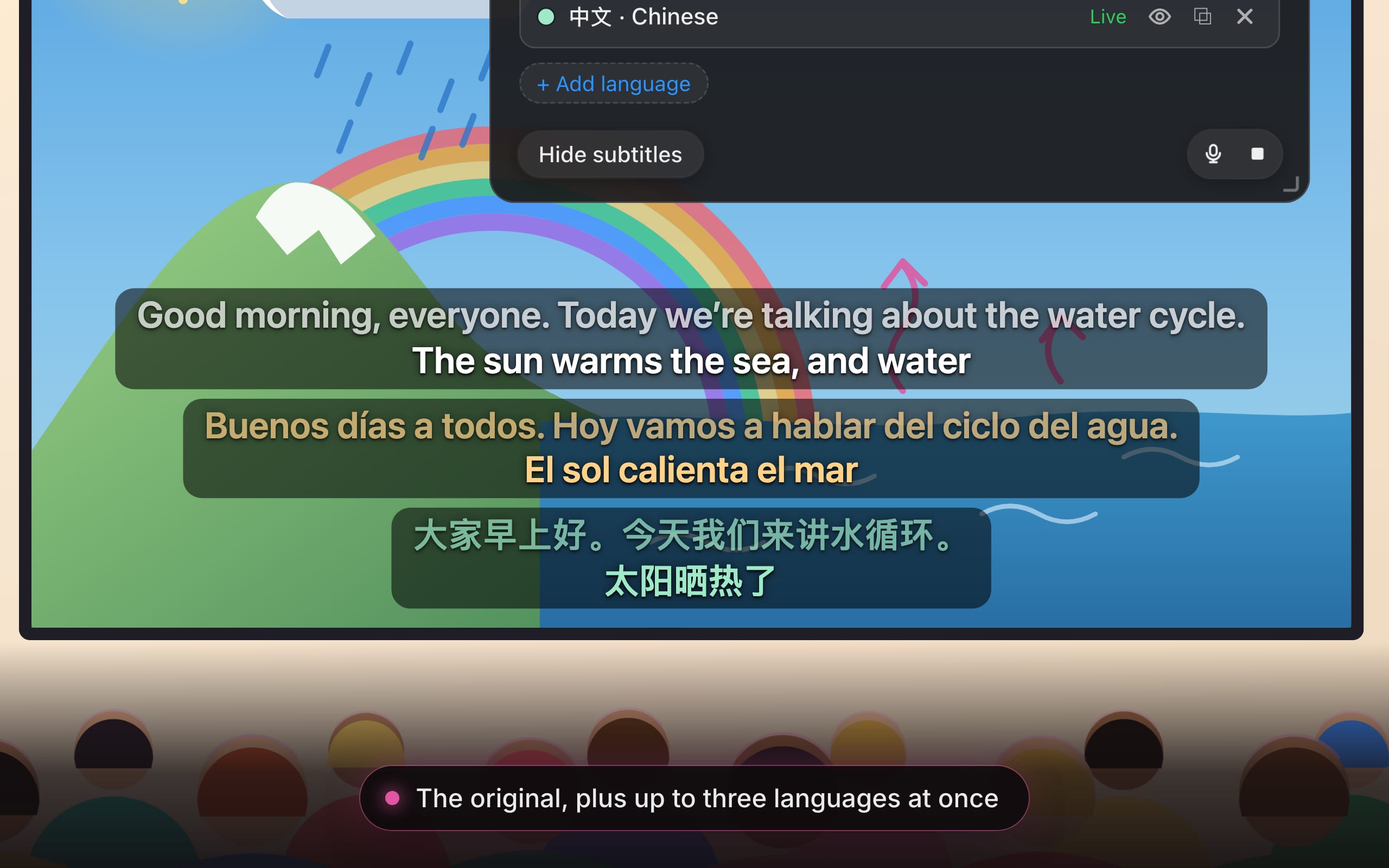
- Several languages at once — the original line plus up to three translations, side by side, with automatic detection of the spoken language.
- A color for every language, each with its own text and background color, size and width.
- Position is free: pop a language into its own window and drag it wherever the screen needs it.
- Study later: sessions save as a timeline with audio, so any line in any language can be replayed.
Microphone as source: translating for the room, live
Subtitles can listen to you instead of the machine. Choose Microphone as the source, speak normally, and everyone in the room or on the stream reads along in their own language.
- Teach in your own words: explanation, instruction, story — what you say appears on the projector as you say it, translation underneath.
- One room, several languages: up to three translations at once, each in its own color or its own window on the screen that needs it.
- Any microphone from a pick list, laptop, headset or lapel, with noise reduction tuned to the room.
- Captions for what you produce: screen-record with the captions on the frame, or export the saved session as SRT, timed to your voice.
Rollout effort: Three steps from installer to first unpacked sentence
- Install and sign in. Put the app on the Mac and authenticate with Google — no API keys, no configuration, and free starter credit is already in the account.
- Feed it something. Start a series, a video, a podcast or a call, then pick Listening or Subtitles from the menu bar; for Speaking, use the microphone.
- Work sentence by sentence. Playback pauses at each end of sentence: read it, hear it again, ask about it, press Continue.
For evaluation purposes that is the whole deployment: no content migration, no integration work, no admin console. The measured effort is behavioral — whether reviewers accept an interruption at every sentence — and the free allowance is enough to answer that question.
Three scenarios where the application layer pays off
Learner self-study
- Tonight’s episode becomes homework that gets done, because the viewing was already scheduled.
- Every line turns into a small lesson with vocabulary and grammar looked up in advance.
- Out-loud practice before an oral exam, a trip or a first date, each attempt returning one gentle correction.
- A streak and a heatmap make accumulated hours visible.
Classroom delivery
- Authentic material — news, interviews, films — with the instructor pausing on exactly the sentence to be discussed.
- Live subtitles in up to three languages at once, either of what is played or of what the teacher says into the microphone, for a room that does not share one language.
- Saved sessions become lesson material: the sentences, the vocabulary, the audio.
Content production
- Language content without the editing marathon: play the footage and each sentence arrives already unpacked.
- The word-by-word overlay viewers pause for, ready to screen-record.
- Live transcription and two-language captions over any video, or over your own voice from the microphone, in your colors, size and position.
- Copy the transcript into a script, or export subtitles as SRT, timed as spoken or aligned to the original.
Retention layer: the session log is the compounding asset
A sentence you understood at 11 pm should not be gone by morning. Everything is stored on the Mac and ready to replay, and quiet evenings accumulate into something visible.
Caption: dashboard illustration of the activity heatmap — one cell per day, one column per week, with a Less/More scale.
- Every sentence with its audio: the original clip, translation, vocabulary, grammar and any chat about it, replayable with the same word-by-word highlight.
- Streaks and a year at a glance: an activity heatmap for each way of practicing, with current and longest streak, sessions, sentences and time.
- Subtitle timelines you can study later: a time-marked transcript where any line in any language plays, copies, or exports as SRT.
- Yours to keep or delete: a sentence, a chat or a whole session can be removed whenever you like.
Cost structure: One allowance across all modes
One allowance is shared by Listening, Speaking and Subtitles, so budgeting is a single number rather than three. Pay yearly and two months are on the vendor.
| Tier | Price | What it is for | Selection signal |
|---|---|---|---|
| Free | $0 | Try everything with free starter credit; no card, no timer on deciding | Pilot phase, single reviewer, one use case |
| Pro | $29 /month | A steady habit: a monthly allowance to spend on any feature you like | One mode used daily, or several used lightly |
| Max | $100 /month | Daily immersion, classrooms and long evenings of live subtitles | Continuous Subtitles, teaching rooms, production runs |
The practical read: because the allowance is shared, a classroom or streaming session competes for the same pool as self-study. Measure which mode consumes the allowance during the free starter credit phase before committing to a tier.
Risk boundary and data handling: what to hand your security reviewer
- Audio only, never your screen. The app taps the sound the Mac is playing; macOS asks for “System Audio Recording Only”, and there is no screen recording capability at all.
- History stays local. Sentences, audio clips, chats and subtitle timelines are saved on the device, not in the vendor’s cloud.
- Telemetry is volumetric. The vendor’s servers see how much you used, not what you watched or said.
- The model does hear the audio. To transcribe and translate, the audio of a running session is sent to the AI provider, OpenAI. This is the disclosure to price into any policy check before a supervised or workplace rollout.
- Platform floor: Apple Silicon Macs with macOS 14.2 or later. Older hardware cannot be in scope for a pilot.
Common misconceptions to clear before a pilot
- “It captures my screen.” It does not; the permission it requests is audio only.
- “My practice data is uploaded for training.” Sessions live on the Mac and can be deleted individually or wholesale.
- “Nothing leaves the machine.” The running session’s audio does go to OpenAI for transcription and translation — the vendor states this plainly rather than burying it.
- “We need API keys and an integration project.” Sign-in with Google is the entire setup.
- “It works only with a proprietary player.” Anything that plays sound on the Mac is in scope, all of it or one app you pick.
- “Speaking feedback is a full correction pass.” The design returns one priority fix per attempt, by intent.
- “Subtitles need a source file.” Captions are generated live from system audio or from your microphone, with language detection automatic.
FAQ
What is the minimum technical requirement?
Apple Silicon Macs running macOS 14.2 or later. There is no configuration beyond installation and a Google sign-in.
Which languages are supported?
Live subtitles cover 13 languages. Listening and speaking span all 57, with “Hello” available across the set.
Can several translations be shown at once?
Yes. The original line plus up to three translations, each with its own colors, size, width and window position, with the spoken language detected automatically.
How is usage metered across modes?
One allowance covers Listening, Speaking and Subtitles together. Annual billing adds two months at no cost.
What happens if a learner says nothing worth correcting?
The coach names the pattern you used best instead, so every attempt returns something actionable.
Can output be reused outside the app?
Yes. Sessions save with audio and time marks; transcripts copy out, and subtitle sessions export as SRT, timed as spoken or aligned to the original.
Is it usable for live teaching in a mixed-language room?
Select Microphone as the source and speak normally; up to three languages of captions appear for the room, on the projector or in separate windows, and the session saves for later study.
Action plan for the next two weeks
- Pick one scenario, not three: self-study, classroom delivery or content production. The allowance is shared, so split pilots dilute the signal.
- Confirm the device floor on every participant machine before the first session: Apple Silicon Macs, macOS 14.2 or later.
- Install, sign in with Google, and burn only the free starter credit — no card, no timer on deciding.
- Decide scope up front: all system audio, or the single application under review.
- Run the security question early — session audio goes to OpenAI for transcription and translation — and get your answer in writing before supervised or workplace use.
- Track the dashboard, not impressions: sessions, sentences, time, current streak and longest streak, on the heatmap of one cell per day and one column per week.
- Time a real session to see whether sentence pauses suit your material; slow the voice from half speed up before you abandon the format.
- Export one SRT from a live subtitle session to test downstream reuse in your own pipeline.
- Compare consumption per mode against the tier table — $0, $29 /month, $100 /month — before standardizing.
- Kill or scale on evidence: if nothing is saved and replayed after two weeks, the workflow fit failed; if lines keep coming back for review, the retention layer is doing its job.
Read as an application rather than as a model, the pitch is simple: no new content to buy, no migration, and an AI step welded onto habits that already exist. The open questions are not about capability but about tolerance — how much interruption your material can take, how much of the shared allowance your chosen mode eats, and whether the audio disclosure clears your policy bar. Those three answers decide whether this becomes a daily tool or a trial you forget, and the free starter credit lets you find out without committing a budget line.